Main PDF
1. Overall Screen Composition
Finansia HERO HTS is divided into top menu bar, bottom ticker bar and screen view area in the middle where screens
pop up.
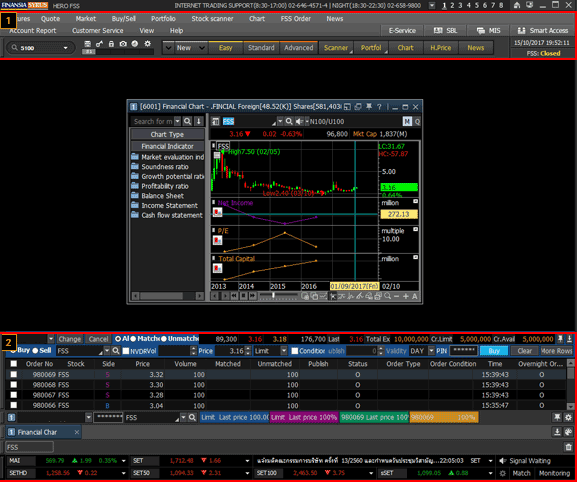
2. Description of Screen
Menu Bar

FSS center call number or world-time can be selected.
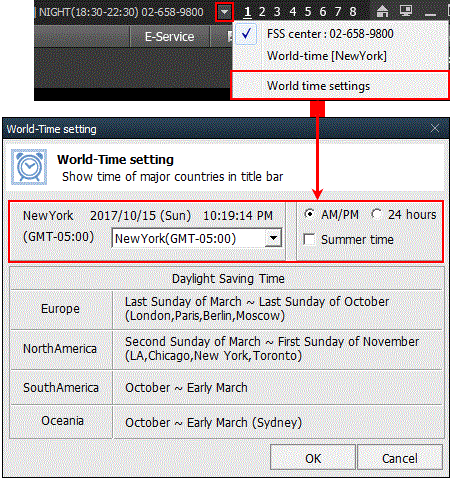
Finansia HERO offers 8 virtual screens. Virtual screens are operated as separate screens to show
different screens for efficient use.
Click
 button to https://www.fnsyrus.com/th/home/
page.
button to https://www.fnsyrus.com/th/home/
page.
When using two or more monitors, click button to
expand the HTS screen to all connected monitors.
button to
expand the HTS screen to all connected monitors.
button to https://www.fnsyrus.com/th/home/
page.When using two or more monitors, click
button to
expand the HTS screen to all connected monitors.
All screens provided on Finansia HERO can be found easily from a tree structure.
Click  buttons to open related
websites.
buttons to open related
websites.
buttons to open related
websites.
Screen search and open
Enter name of the screen to easily open the screen through history of screens searched.
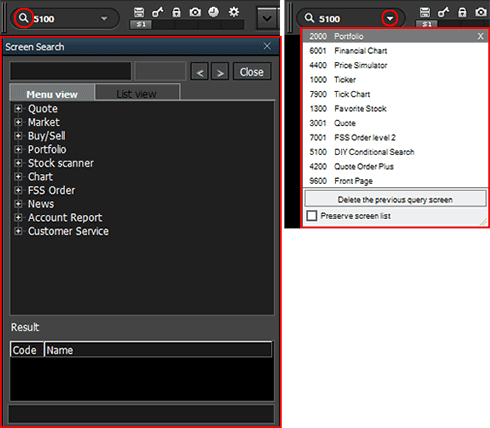
Enter name of the screen to easily open the screen through history of screens searched.
Function button
Convenient functions like Create saved screen and Management PIN Number are provided
Convenient functions like Create saved screen and Management PIN Number are provided
Click  button to open the ‘Saved
screen management’ pop-up window and save current screen
composition.
button to open the ‘Saved
screen management’ pop-up window and save current screen
composition.
Saved screens can be set by default composition of each screen.
Saved screens can be called easily using shortcut buttons below.
button to open the ‘Saved
screen management’ pop-up window and save current screen
composition.Saved screens can be set by default composition of each screen.
Saved screens can be called easily using shortcut buttons below.
Click  button to open [Preferences
->
General settings -> Security setting] on HERO FSS and configure
pin number of the user.
button to open [Preferences
->
General settings -> Security setting] on HERO FSS and configure
pin number of the user.
button to open [Preferences
->
General settings -> Security setting] on HERO FSS and configure
pin number of the user.
If HERO FSS is not used for long time, click
 button to minimize HERO FSSandprevent others
fromusing it.
button to minimize HERO FSSandprevent others
fromusing it.
button to minimize HERO FSSandprevent others
fromusing it.
Click  button to capture the
current
screen on HERO FSS as an image in the designated folder.
button to capture the
current
screen on HERO FSS as an image in the designated folder.
button to capture the
current
screen on HERO FSS as an image in the designated folder.
Click  button to run the mini clock
on
the right side of the HERO FSS screen.
button to run the mini clock
on
the right side of the HERO FSS screen.
button to run the mini clock
on
the right side of the HERO FSS screen.
Click  button to run [Preferences
->
General settings -> Toolbar] menu of HERO FSS and use various
function buttons other than basic function buttons provided.
button to run [Preferences
->
General settings -> Toolbar] menu of HERO FSS and use various
function buttons other than basic function buttons provided.
button to run [Preferences
->
General settings -> Toolbar] menu of HERO FSS and use various
function buttons other than basic function buttons provided.
Toolbar
A toolbar group can be made by gathering screens that are used most often among screens provided on the main menu.
In addition to default groups provided, the user can create additional toolbar groups.
Click button to select a saved toolbar and configure
toolbar setting.
button to select a saved toolbar and configure
toolbar setting.
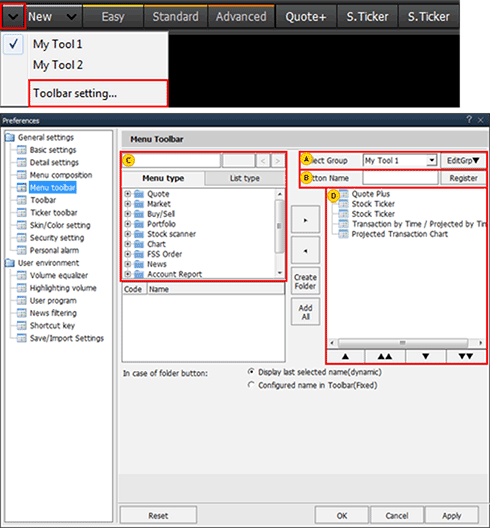
A toolbar group can be made by gathering screens that are used most often among screens provided on the main menu.
In addition to default groups provided, the user can create additional toolbar groups.
Click
button to select a saved toolbar and configure
toolbar setting.
To create a new toolbar group, click  button to select ‘Resister new group’ menu and enter name of the toolbar group.
button to select ‘Resister new group’ menu and enter name of the toolbar group.
Button name of the screen selected in  can be changed.
can be changed.
Search and select screens to be added to the toolbar group or select them from the menu tree.
This is a list of screens registered on the designated toolbar group
Click  button to run [Preferences -> General
settings -> Personal alarm] menu of HERO FSS and configure daily or hourly alarm.
button to run [Preferences -> General
settings -> Personal alarm] menu of HERO FSS and configure daily or hourly alarm.
 shows current time status of the market.
button to run [Preferences -> General
settings -> Personal alarm] menu of HERO FSS and configure daily or hourly alarm. shows current time status of the market.
Ticker Bar
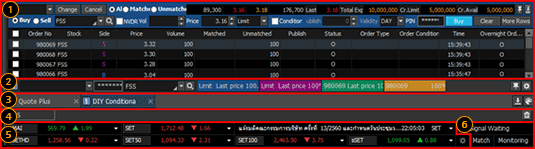
This is an order area that views order history of a selected account or executes change/cancel
order and buy order.
This area can easily place orders without having to use a separate order screen, increasing convenience of trading.
This area can easily place orders without having to use a separate order screen, increasing convenience of trading.
This is a quick order area that can place orders after than  area.
area.
Click button to open the ‘Quick order setting’ pop-up
window and place a quick order according to the designated order conditions by a single click.
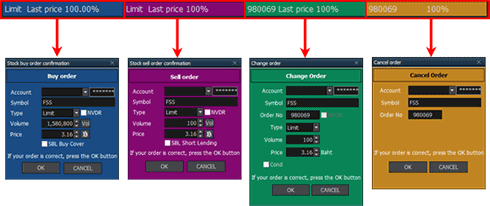
※ Please refer to the section on order screens for detailed method of setting and using order.
area.Click
button to open the ‘Quick order setting’ pop-up
window and place a quick order according to the designated order conditions by a single click.
※ Please refer to the section on order screens for detailed method of setting and using order.
This is a list of screens currently opened on HTS.
This area can place orders quickly and simply without having to use a separate order screen, increasing convenience of trading.
This area can place orders quickly and simply without having to use a separate order screen, increasing convenience of trading.
This is a list of stocks that were entered on the running screen. Click  button to delete the list.
button to delete the list.This is a ticker toolbar that provides index and news information selected by the user.
Click button to run [Preferences -> General
settings -> Ticker toolbar] menu of HERO FSS and configure the ticker toolbar.
button to run [Preferences -> General
settings -> Ticker toolbar] menu of HERO FSS and configure the ticker toolbar.
Click
button to run [Preferences -> General
settings -> Ticker toolbar] menu of HERO FSS and configure the ticker toolbar.
Item setting
Number of lines displayed and items of the ticker toolbar can be configured
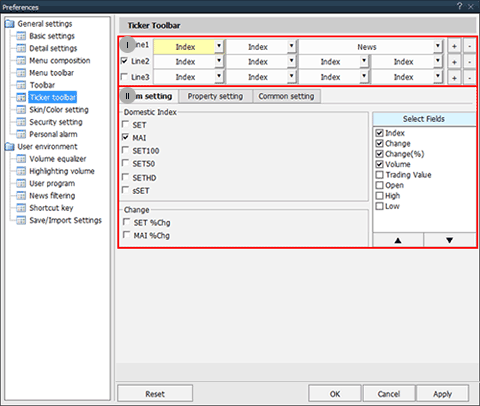
Number of lines displayed and items of the ticker toolbar can be configured
Number of lines on the ticker displayed on HTS can be configured.

 button on the right side are used to adjust number of items displayed per line. Up to 8 information items can be combined.
button on the right side are used to adjust number of items displayed per line. Up to 8 information items can be combined. This is an area to select items provided on the ticker toolbar. Select fields in  (indicated in yellow once selected) and select detailed items.
(indicated in yellow once selected) and select detailed items.Property setting
Data scrolling speed, font and color can be selected.
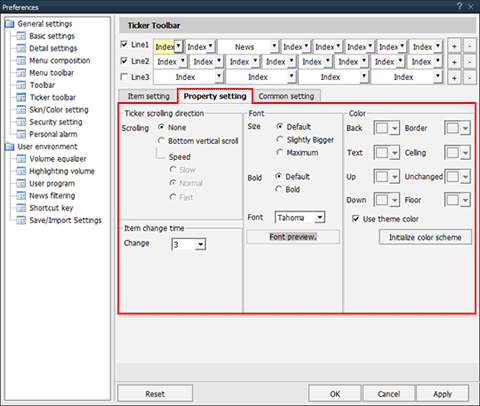
Data scrolling speed, font and color can be selected.
Common setting
Common setting of the ticker toolbar can be configured.
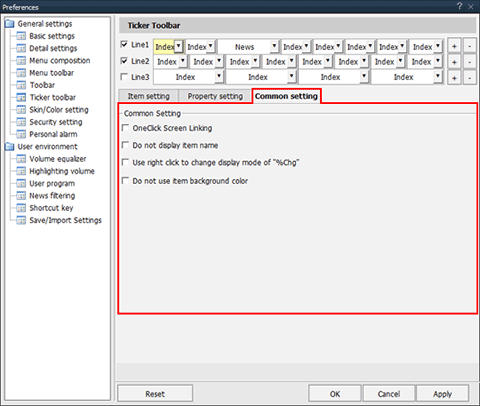
Common setting of the ticker toolbar can be configured.
Signal Waiting/Match/Monitoring
Signal Waiting
Click button to open the ‘Signal Manager’ pop-up window and check signals that appear in news and stocks
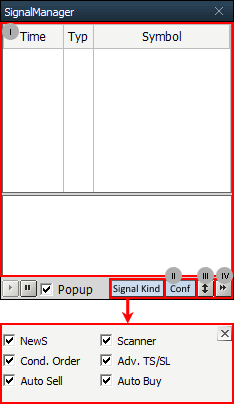
Click
button to open the ‘Signal Manager’ pop-up window and check signals that appear in news and stocks
Time of signal occurrence, type, symbol and details are provided.
Double click the signal list to open the related screen.
Click  button to open the ‘Signal Manager Setting’ pop-up window and configure Signal Waiting.
The ‘Signal Manager Setting’ window is divided into Default Setting, Sound Setting, News Setting and Symbol Filtering tabs. The user can configure Signal Waiting as wanted.
button to open the ‘Signal Manager Setting’ pop-up window and configure Signal Waiting.The ‘Signal Manager Setting’ window is divided into Default Setting, Sound Setting, News Setting and Symbol Filtering tabs. The user can configure Signal Waiting as wanted.
Click  button to reduce size of the area viewing details below the list.
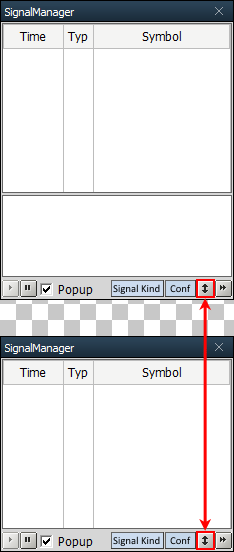
button to reduce size of the area viewing details below the list.
Click
 button to enlarge the ‘Signal Manager’ window to full size, allowing the user to view details with convenience.
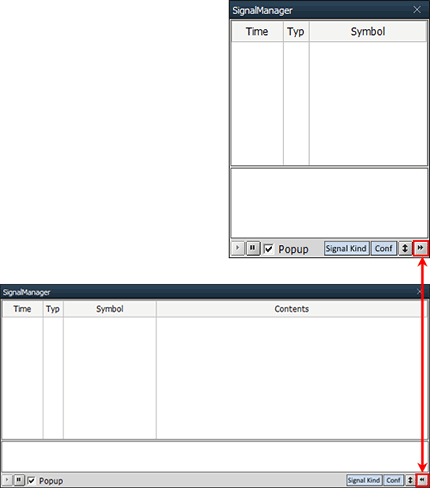
button to enlarge the ‘Signal Manager’ window to full size, allowing the user to view details with convenience.
Click  button to open the ‘Trading Notification’ pop-up window and check Symbol, Order Type, Match Price and Match Volume of orders at a sight.
Click button to configure various settings for the ‘Trading Notification’ window such as Automatic Hiding Time, Use Sound and Always on Top.
button to open the ‘Trading Notification’ pop-up window and check Symbol, Order Type, Match Price and Match Volume of orders at a sight.Click
button to configure various settings for the ‘Trading Notification’ window such as Automatic Hiding Time, Use Sound and Always on Top.Click  button to open the ‘Management stock Monitoring’ pop-up window and configure Monitoring Start/Stop settings for Conditional Buy Order, Conditional Sell Order, etc.
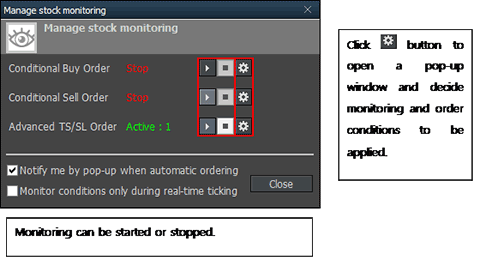
button to open the ‘Management stock Monitoring’ pop-up window and configure Monitoring Start/Stop settings for Conditional Buy Order, Conditional Sell Order, etc.
