[7000] (FSS)(Hero) Order leverl 1 PDF
1. Overview of Screen
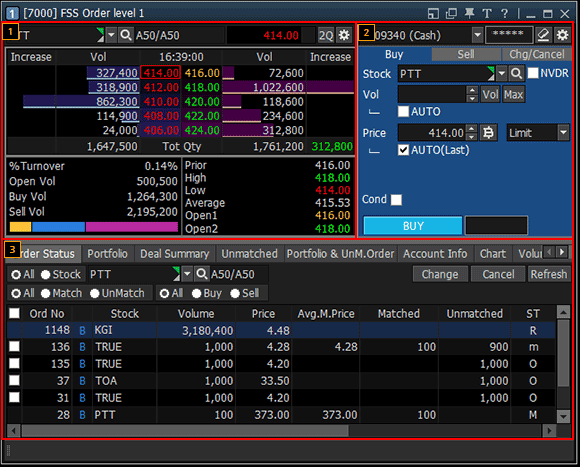
This is a trading screen that shows various trading information including 5 bids/offers of a stock,
buy/sell/change/cancel order, unmatched orders and account portfolio can be viewed on a single screen.
2. Description of Screen
5 stage Bids/Offers
This is an area that shows 5 stage bids/offers and detailed information of the selected stock.
This is an area that shows 5 stage bids/offers and detailed information of the selected stock.
Click  button to select one of 4 bid/offer
types.
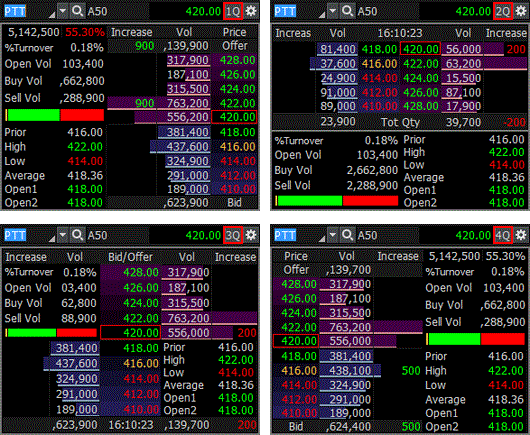
button to select one of 4 bid/offer
types.
Click  button to configure options for
the bid/offer window on the Last (5 stage) Setting window. Viewing options can choose for view more details such
volume of bid/offer by graph, grid line, bid/offer (buy/sell color), current price outline and % price change.
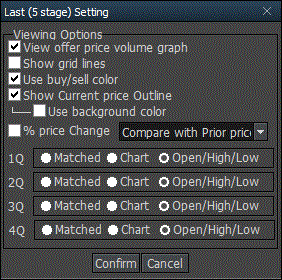
button to configure options for
the bid/offer window on the Last (5 stage) Setting window. Viewing options can choose for view more details such
volume of bid/offer by graph, grid line, bid/offer (buy/sell color), current price outline and % price change.
Order Area
Use tabs at the top to place buy, sell, change or cancel order.
Use tabs at the top to place buy, sell, change or cancel order.
Buy order
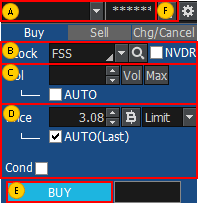
Select an account to place a buy order.
Select a stock to order.
If is checked, a stock without voting rights for
the stock selected by the user is selected.
If
is checked, a stock without voting rights for
the stock selected by the user is selected.
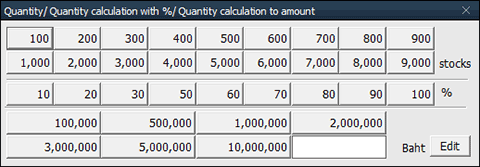
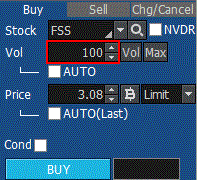
Enter order volume or click  button to
select volume from the volume selection pop-up window.
Click button to calculate maximum available volume in portfolio.
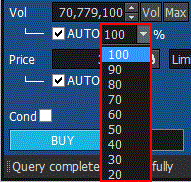
Check ‘AUTO’ item to automatically calculate volume based on % of portfolio selected by the user.
button to
select volume from the volume selection pop-up window.
Click
button to calculate maximum available volume in portfolio.Check ‘AUTO’ item to automatically calculate volume based on % of portfolio selected by the user.
Enter order price or click the button to select bid when the pop-up window appears. Designate price type. If 'AUTO (Last)' item is checked, last of the stock is entered automatically.
If ‘Cond’ item is checked, detailed order type can be selected.
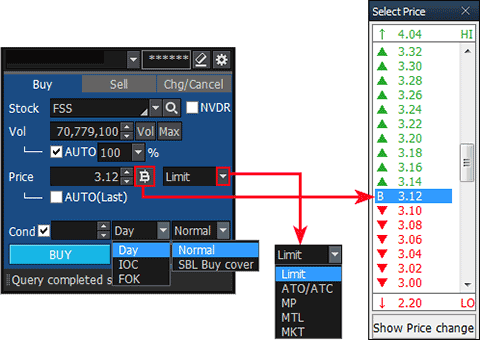
Click  button to place the buy order.
Click  button to delete all details of the order entered by the user and enter a new order.
Sell order
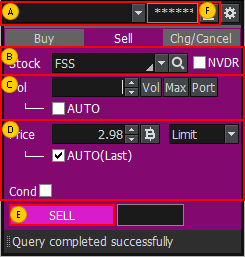
Select an account to place a sell order.
Select a stock to order.
If is checked, a stock without voting rights for the stock selected by the user is selected.
If
is checked, a stock without voting rights for the stock selected by the user is selected.Enter order volume or click button to select volume from the volume selection pop-up window.
Click button to calculate maximum available volume in portfolio.
Check ‘AUTO’ item to automatically calculate volume based on % of portfolio selected by the user.
Click button to open the portfolio pop-up window. Select portfolio from the pop-up window to place a sell order.
button to select volume from the volume selection pop-up window.
Click
button to calculate maximum available volume in portfolio.Check ‘AUTO’ item to automatically calculate volume based on % of portfolio selected by the user.
Click
button to open the portfolio pop-up window. Select portfolio from the pop-up window to place a sell order.
Enter order price or click the button to select offer when the pop-up window appears. Designate price type. If 'AUTO(Last)' item is checked, last of the stock is entered automatically.
If ‘Cond’ item is checked, detailed order type can be selected.
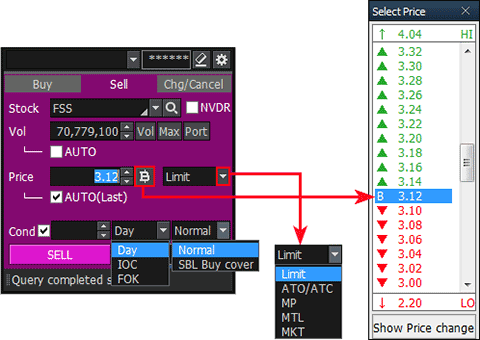
If ‘Cond’ item is checked, detailed order type can be selected.
Click  button to place the sell order.
Click button to delete all details of the order entered by the user and enter a new order.
button to delete all details of the order entered by the user and enter a new order. Change/cancel order
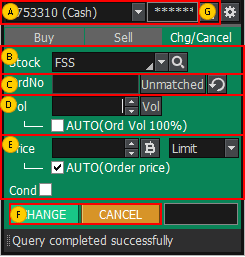
Select an account to place change/cancel order.
Select a stock to order.
Enter original order number or click  button and select an unmatched order from the unmatched order pop-up window.
Click
 button to delete original order number.
button and select an unmatched order from the unmatched order pop-up window.
Click button to delete original order number. Enter order volume or click button to select volume.
If 'AUTO(Order Vol 100%)' is checked, remaining unmatched volume is automatically entered according to % designated by the user.
button to select volume. If 'AUTO(Order Vol 100%)' is checked, remaining unmatched volume is automatically entered according to % designated by the user.
In case of change order, enter order price or click  button and select bid/offer from the bid/offer pop-up window. Designate price type.
Check 'AUTO(Last)' item to enter last of the stock automatically.
If ‘Cond’ item is checked, detailed order type can be selected.
Items are not selected in case of cancel order.
button and select bid/offer from the bid/offer pop-up window. Designate price type. Check 'AUTO(Last)' item to enter last of the stock automatically.
If ‘Cond’ item is checked, detailed order type can be selected.
Items are not selected in case of cancel order.
Click  buttons to place the order.
 Click button to delete all details of order entered by the user and enter a new order
button to delete all details of order entered by the user and enter a new orderAccount Information Area
Information related to portfolio such as "Order Status, Portfolio, Account Info, Deal Summary, Volume Simulator" is provided using tabs.
In common, change all, cancel all and sell all orders can be placed by checking the check box next to the stock.
Information related to portfolio such as "Order Status, Portfolio, Account Info, Deal Summary, Volume Simulator" is provided using tabs.
In common, change all, cancel all and sell all orders can be placed by checking the check box next to the stock.
Order Status
Daily order status can be viewed
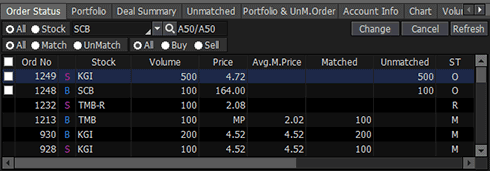
Daily order status can be viewed
Portfolio
Various information about current account portfolio can be seen at a sight to identify account status of the user.
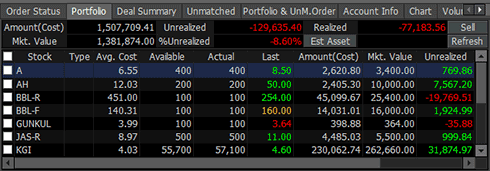
Various information about current account portfolio can be seen at a sight to identify account status of the user.
『Account Terms』
Amount(Cost): Buy amount when buying portfolio owned (buy amount + commission + fee + VAT)
Avg(Cost): Amount(Cost) / volume
Mkt.Value: Appraised value (volume * last price)
Unrealized: Sum of profit and loss from portfolio owned (Mkt.Value - Amount(Cost) - commission - fee – VAT)
%Unrealized: Sum of profit and loss from valuation of portfolio owned (Unrealized / Amount(Cost) * 100)
est asset: Cash balance + Mkt.Value
Realized: (Sell price – Avg(Cost)) * matched sell volume – commission – fee – VAT
Deal Summary
Detailed deal summary of the day can be viewed. Detailed history of daily buy and sell orders is shown.
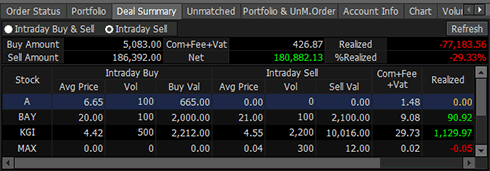
Detailed deal summary of the day can be viewed. Detailed history of daily buy and sell orders is shown.
Unmatched
Current unmatched order status can be viewed at a sight.
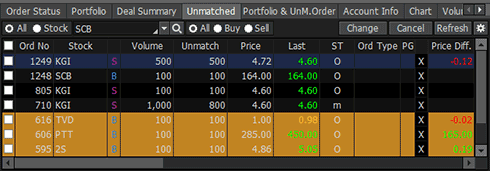
Current unmatched order status can be viewed at a sight.
Portfolio & Unmatched Order
Portfolio and Unmatched order information can be viewed. ‘Change all/Cancel all’ order can be executed on unmatched orders.
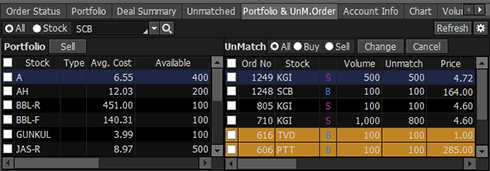
Portfolio and Unmatched order information can be viewed. ‘Change all/Cancel all’ order can be executed on unmatched orders.
Account Info
Current account information can be viewed. Cash refers to cash in the cash account. Even if there are stocks in possession, cash is displayed as 0 if there is no cash in the account.
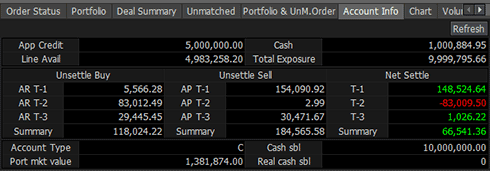
Current account information can be viewed. Cash refers to cash in the cash account. Even if there are stocks in possession, cash is displayed as 0 if there is no cash in the account.
Chart
The chart of the stock can be viewed. Indicators and analysis tools can be used in the same way as the general chart.
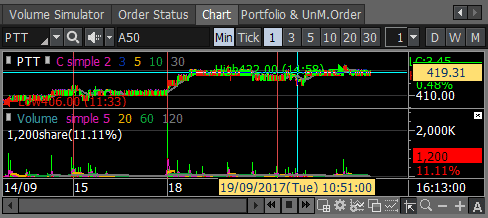
The chart of the stock can be viewed. Indicators and analysis tools can be used in the same way as the general chart.
Volume Simulator
‘PP, Buy allow volume, Total exposure’ can be viewed by entering stock and buy price.
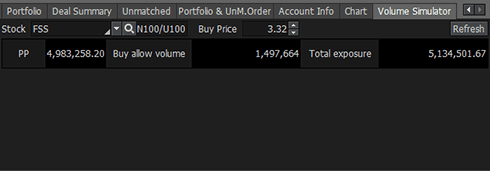
‘PP, Buy allow volume, Total exposure’ can be viewed by entering stock and buy price.
『Common Matters for Bid/Offer Area』
Selection of a stock to be viewed
Enter or select a stock to be viewed.
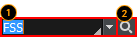
Enter or select a stock to be viewed.
Selection of a stock to be viewed
The user can directly enter a stock to be viewed.
Click  button to open a list of stocks previously viewed.
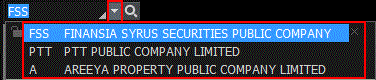
button to open a list of stocks previously viewed.
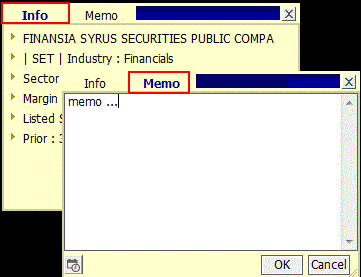
Click  next to stock name to see ‘Info’ and ‘Memo’ for the selected stock.
Memo function allows the user to write down opinions and thoughts about a stock. This memo can be checked at any time on other screens. This is a simple user database for stocks that adds to price viewing function of the screen.
next to stock name to see ‘Info’ and ‘Memo’ for the selected stock.
Memo function allows the user to write down opinions and thoughts about a stock. This memo can be checked at any time on other screens. This is a simple user database for stocks that adds to price viewing function of the screen.
Selection of a stock to be viewed through search
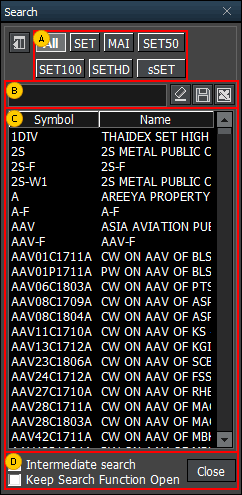
Click button to open the ‘Search’ pop-up window and select a stock to be viewed.
Click
button to open the ‘Search’ pop-up window and select a stock to be viewed.
Select a category to be viewed such as SET, MAI.
Directly enter a stock to be searched and viewed.
Click to save the search result as a TXT file on the user’s PC.
Click to save the search result as an Excel file on the user’s PC.
Click
to save the search result as a TXT file on the user’s PC.Click
to save the search result as an Excel file on the user’s PC.A list of stocks in the category selected in  or a list of stocks based on the search results described in
 is provided.
or a list of stocks based on the search results described in is provided.Intermediate Search and Keep Search Function Open functions can be selected
『Common Matters for Order Area』
Order Settings
The order screen of Finansia HERO allows for fast and convenient trading through configuration of trading volume and price settings.
In addition, various setting options are designed so that the user can decide settings based on personal trading environment and style, thus maximizing efficiency of trading. Various setting values are automatically changed on the trading window in real time when the stock is changed or bid/offer changes.
The order screen of Finansia HERO allows for fast and convenient trading through configuration of trading volume and price settings.
In addition, various setting options are designed so that the user can decide settings based on personal trading environment and style, thus maximizing efficiency of trading. Various setting values are automatically changed on the trading window in real time when the stock is changed or bid/offer changes.
Basic
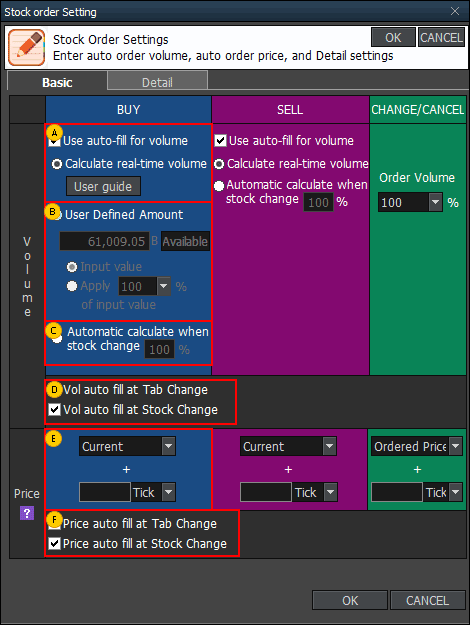
Auto-fill for volume: Auto-fill for volume is a function that automatically fills volume reflecting account information such as deposit and portfolio, as well as real-time price, so that orders can be placed immediately.
User Defined Amount: Order amount can be adjusted by setting as a ratio of input value.
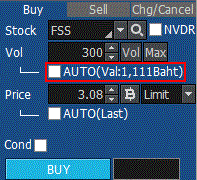
Ex) If 1,111 is entered into User Defined Amount and ‘Input value’ is selected, volume is calculated automatically based on 1,111 Baht entered by the user. If 50% is selected, volume is calculated to be 555 Baht (1,111 Baht × 50%).
Ex) If 1,111 is entered into User Defined Amount and ‘Input value’ is selected, volume is calculated automatically based on 1,111 Baht entered by the user. If 50% is selected, volume is calculated to be 555 Baht (1,111 Baht × 50%).
Automatic calculate when stock change: Order volume can be entered in %.
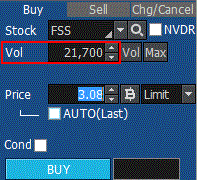
When changing tab or stock, order volume and price can be filled automatically.
If 'Price auto fill at stock change' item is selected, bid/offer price is filled automatically as price of “Buy, Change/Cancel or Sell” order whenever stock is changed.
If 'Price auto fill at stock change' item is selected, bid/offer price is filled automatically as price of “Buy, Change/Cancel or Sell” order whenever stock is changed.
Order price is entered automatically according to designated tick or %.
When changing tab or stock, order volume and price can be filled automatically.
Detail
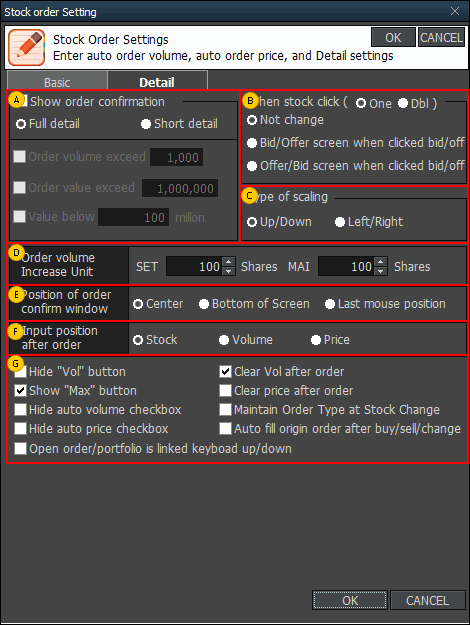
Order confirmation can be shown in full detail or short detail.
Event for one clicking or double clicking of stock can be selected.
Type of scaling buttons can be selected between up/down and left/right.
Increase unit of order volume can be designated by the user. Default order volume is 100 or 50 stocks depending on price, but it can be set by the user for fast order placement considering size of deposit in the user’s account.
Position of the order confirmation window can be designated.
Input position after order can be designated.
Various options such as showing of order window buttons can be set.
『Order Type』
Limit : Limit order is an order to buy or sell at a specified price.
MKT(Market Order) : A market order is an order to buy or sell a stock at the best available price. A market order can be matched at more than one price level. Unmatched quantity (if any) will be automatically cancelled. Market orders are allowed only during open trading sessions.
MP(Special Market Order) : A special market order is an order to buy or sell a stock at the best available price. Such an order can be matched at more than one price level. Unmatched quantity (if any) will be converted to a limit order at a price of one tick better than the last executed price. Special market orders are allowed only during open trading sessions.
MTL(Market-to-Limit Order) : A market-to-limit order is submitted as a market order to execute at the current best market price only. Unmatched quantity (if any) will be converted to a limit order at price equal to the last executed price. Market-to-limit orders are allowed only during open trading sessions.
ATO(At-The-Open Order) : An order to buy or sell a stock at the session’s opening price. ATO orders are allowed during pre-open sessions (morning and afternoon).
ATC(At the Close Order) : An order to buy or sell a stock at the closing price. ATC orders are allowed only during pre-close sessions.
IOC(Immediate-Or-Cancel Order) : An order to buy or sell a stock immediately at a specific price (limit order) on the condition that any remaining portion of the trade which is unmatched will be cancelled. IOC orders are allowed only during open trading sessions and are not allowed to be used with an Iceberg order or any market order type.
FOK(Fill-Or-Kill Order) : An order to place a trade immediately and completely at a specified price (limit order); if the specified conditions cannot be met immediately, the order is cancelled. FOK orders are allowed only during open trading sessions, and are not allowed to be used with an Iceberg order or any market order type.
Publish(Iceberg Order) : An iceberg order is a high volume order that has been equally subdivided into smaller lots so that only the portion of the total order which is currently being executed is visible. The broker specifies the subdivided portion of the order to be published in the order book. When the published portion of the order is executed, the next remaining suborder is made available for trade until the entire high-volume order has been executed.
An Iceberg order is allowed only during open trading sessions, must be a limit-price order, and must be divided into no more than 100 suborders. Any unmatched portions of an Iceberg order in each trading session will be automatically cancelled by the system. In addition, when the trading of a particular stock is halted, all unmatched volume of Iceberg orders will be automatically cancelled.
* Source of data: SET
An Iceberg order is allowed only during open trading sessions, must be a limit-price order, and must be divided into no more than 100 suborders. Any unmatched portions of an Iceberg order in each trading session will be automatically cancelled by the system. In addition, when the trading of a particular stock is halted, all unmatched volume of Iceberg orders will be automatically cancelled.
* Source of data: SET
